The Ultimate Guide to Using 3D Editable Text Effect Mockups for Professional Design Projects
In the fast-paced world of digital and print design, first impressions are everything. Whether you are a seasoned graphic designer crafting a brand identity or a small business owner creating marketing materials, the visual impact of your typography can make or break your message. This is where the power of 3D editable text style effect mockups comes into play. These sophisticated design assets allow creators to transform flat, ordinary text into stunning, dimensional masterpieces with minimal effort. By leveraging these tools, designers can elevate their portfolios, streamline their workflow, and produce high-quality visuals that stand out in crowded marketplaces.
What Are 3D Editable Text Style Effects?
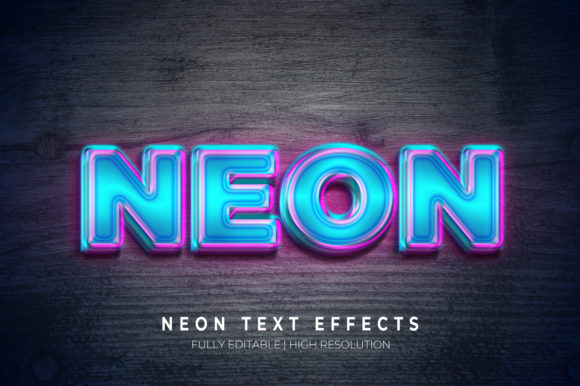
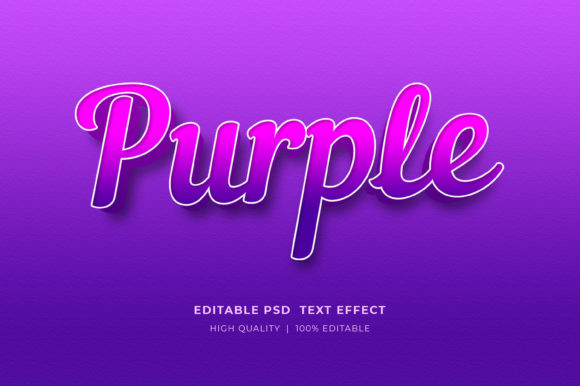
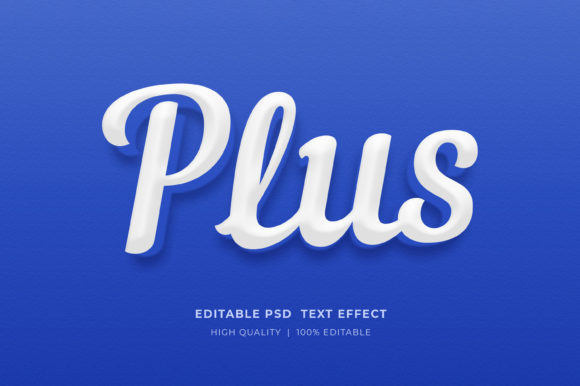
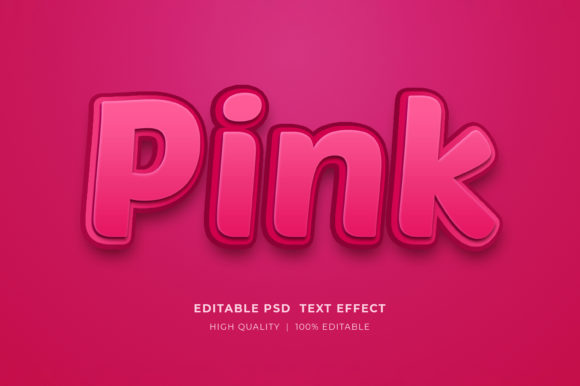
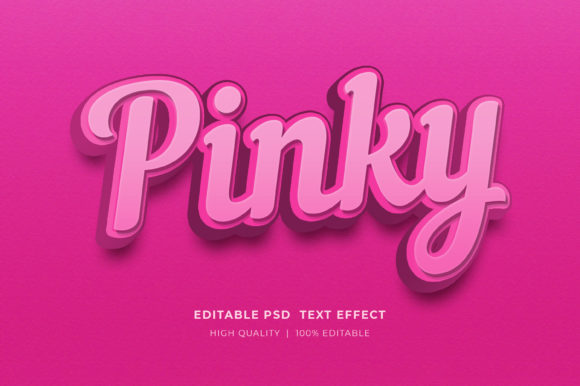
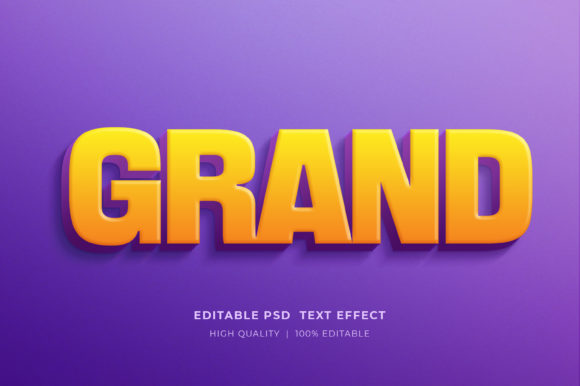
A 3D editable text effect is a pre-designed template, typically created in Adobe Photoshop, that simulates three-dimensional depth, lighting, shadows, and textures on text layers. Unlike standard flat text, which can sometimes appear two-dimensional and boring, 3D text adds volume and realism. It mimics physical objects like metallic letters, glowing neon signs, or embossed stone, giving your words a tangible presence.
The term "editable" is the key feature here. In the past, adding complex 3D effects required hours of manual layering, shadow manipulation, and texture mapping. Today, thanks to the use of smart objects, designers can achieve professional-grade results in seconds. You simply replace the placeholder text with your own, and the software automatically applies the complex styling, ensuring consistency and saving valuable time.
Why Use Smart Object Templates?
For beginners and experienced professionals alike, the efficiency offered by smart object templates is unmatched. But how exactly does this technology work? Understanding the mechanism behind these files helps demystify the process and encourages more people to incorporate them into their workflows.
The Magic of Smart Objects
At the heart of every high-quality 3D text mockup is the Smart Object. In Adobe Photoshop, a smart object is a container that holds image data from raster or vector images. When you double-click on a smart object layer within a PSD file, it opens in a new tab. This allows you to edit the contents without permanently altering the original pixels or breaking the linked effects.
This non-destructive editing method ensures that your changes remain crisp and scalable. If you need to swap out a logo or change a tagline, you do not need to rebuild the entire effect. You simply update the source file, save it, and watch as the main document updates instantly with all shadows, highlights, and textures intact.
How to Customize Your 3D Text Effect
Using these templates is incredibly intuitive, requiring no advanced technical skills. The process is designed to be user-friendly, allowing anyone with basic computer literacy to create professional designs. Here is a step-by-step breakdown of how to change the text, logos, and icons in your project:
- Access the File: Ensure your file is in the correct format (usually .PSD) and open it in Adobe Photoshop.
- Locate the Smart Object: Look through your layers panel for a layer labeled "Text," "Logo," or "Double Click Here." It will usually have a small icon in the corner indicating it is a smart object.
- Open the Smart Object: Simply double-click on the thumbnail of that layer. A new tab will open, showing the internal structure of that element.
- Edit the Content: Select the type tool, click on the existing text, and delete it. Type in your desired text, upload your logo, or insert your icon. Adjust the size and position as needed.
- Save and Update: Once you are satisfied with your changes, press Ctrl+S (Windows) or Cmd+S (Mac) to save. Close the tab, and return to your main document. The 3D effect will have automatically applied to your new content.
This workflow is not just about changing words; it is about versatility. You can use the same base template to create a series of social media posts, each with different messaging but maintaining a cohesive visual style. This consistency is crucial for brand building.
Practical Applications Across Industries
The utility of 3D editable text effects extends far beyond simple graphic design. These assets are versatile tools that fit seamlessly into various creative and commercial endeavors. Let us explore some of the most common and effective ways to utilize these effects in your projects.
Marketing and Advertising Materials
In the realm of marketing, eye-catching visuals are paramount. 3D text effects are perfect for creating:
- Posters and Flyers: Add drama and focus to event announcements or product launches.
- Banners and Web Banners: Capture attention immediately with bold, dimensional headlines.
- Social Media Graphics: Create engaging Facebook timeline covers, Instagram posts, or LinkedIn headers that pop off the screen.
Product Design and Print-on-Demand (POD)
If you are involved in e-commerce or print-on-demand services, presentation is key. High-quality mockups help customers visualize the final product, increasing conversion rates.
- T-Shirt Designs: Showcase your typography on apparel with realistic fabric textures and folds.
- KDP Book Covers: Self-publishing authors can create stunning book covers that compete with traditionally published works.
- Mugs and Merchandise: Apply your 3D text to various surfaces to demonstrate how a design would look on physical goods.
Corporate Identity and Presentations
Professionalism matters in business communications. Using polished 3D text effects can enhance:
- Logo Presentations: Show potential clients how their logo looks in different environments and materials.
- Website Elements: Create custom headers or call-to-action buttons that feel interactive and modern.
- Print Templates: Elevate business cards, letterheads, and brochures with subtle yet impactful text treatments.
Technical Features and Specifications
When selecting a 3D text effect template, it is important to understand the technical specifications to ensure compatibility with your workflow. Most high-quality PSD files come with specific features designed to maximize usability and output quality.
Organized Layer Structure
A well-organized PSD file is a designer’s best friend. These templates typically feature well-organized layers, making it easy to navigate the complexity of the design. Even if the visual result looks complicated, the underlying structure should be logical, allowing you to tweak individual elements like shadows, colors, or background textures without confusion.
High Resolution and RGB Color Mode
To ensure your designs look sharp on both screens and print, look for templates that are high-resolution and set to RGB color mode. RGB is the standard for digital displays, ensuring accurate color representation for web banners, social media, and digital ads. If you plan to print, check if the file includes CMYK alternatives or instructions for conversion.
Editable Text and Colors
Flexibility is essential. The best templates allow you to edit not just the text content, but also the colors. This means you can adapt a gold-textured font to match a blue brand palette, or change a red neon sign to green, all while maintaining the realistic lighting and reflection effects.
Getting Started: Extraction and Support
Once you have purchased or downloaded your 3D text effect pack, you may notice that the files are compressed. This is standard practice to reduce file size and ensure faster downloads. However, it requires a simple step to access the content.
How to Extract Files:
The files are provided in a compressed zipped format (.zip). To get started, you need to extract them to your computer. Simply right-click on the zip folder and select "Extract Here" or "Extract All." This will unpack the PSD files, documentation, and any additional resources into a readable folder structure. Once extracted, you are ready to open the files in Adobe Photoshop and begin designing.
Need Help?
While these templates are designed to be user-friendly, you may occasionally encounter questions regarding specific edits or technical issues. If you need assistance, please contact the creator through their profile page. Most designers are happy to provide support to ensure you get the most out of their work.
Conclusion: Elevate Your Design Game
Incorporating 3D editable text style effects into your design toolkit is a strategic move that pays dividends in both time saved and quality achieved. Whether you are creating a poster, a T-shirt design, or a KDP book cover, these mockups provide a professional foundation that allows your creativity to shine. By understanding how to use smart objects and leveraging organized, high-resolution templates, you can produce stunning visuals that engage your audience and elevate your brand.
We encourage you to rate this resource five stars if you find it helpful. Your feedback inspires creators to continue producing high-quality designs and educational content. Thank you for reading, and happy designing!